![Zeck-blocks-100-3.png]](https://help.zeck.app/hs-fs/hubfs/Zeck-blocks-100-3.png?height=50&name=Zeck-blocks-100-3.png)
Included in this article:
- When to use Ask Zeck
- How Ask Zeck works
- Who can use Ask Zeck
- Can Ask Zeck be turned off?
- Tips for best results
1. How to use ✨ Ask Zeck
Using ✨ Ask Zeck is simple:
-
Open a published Zeck from the platform or via a shared link
-
Click the ✨ Ask Zeck button at the top right of
-
Type your question
-
Review the answer and any citations provided
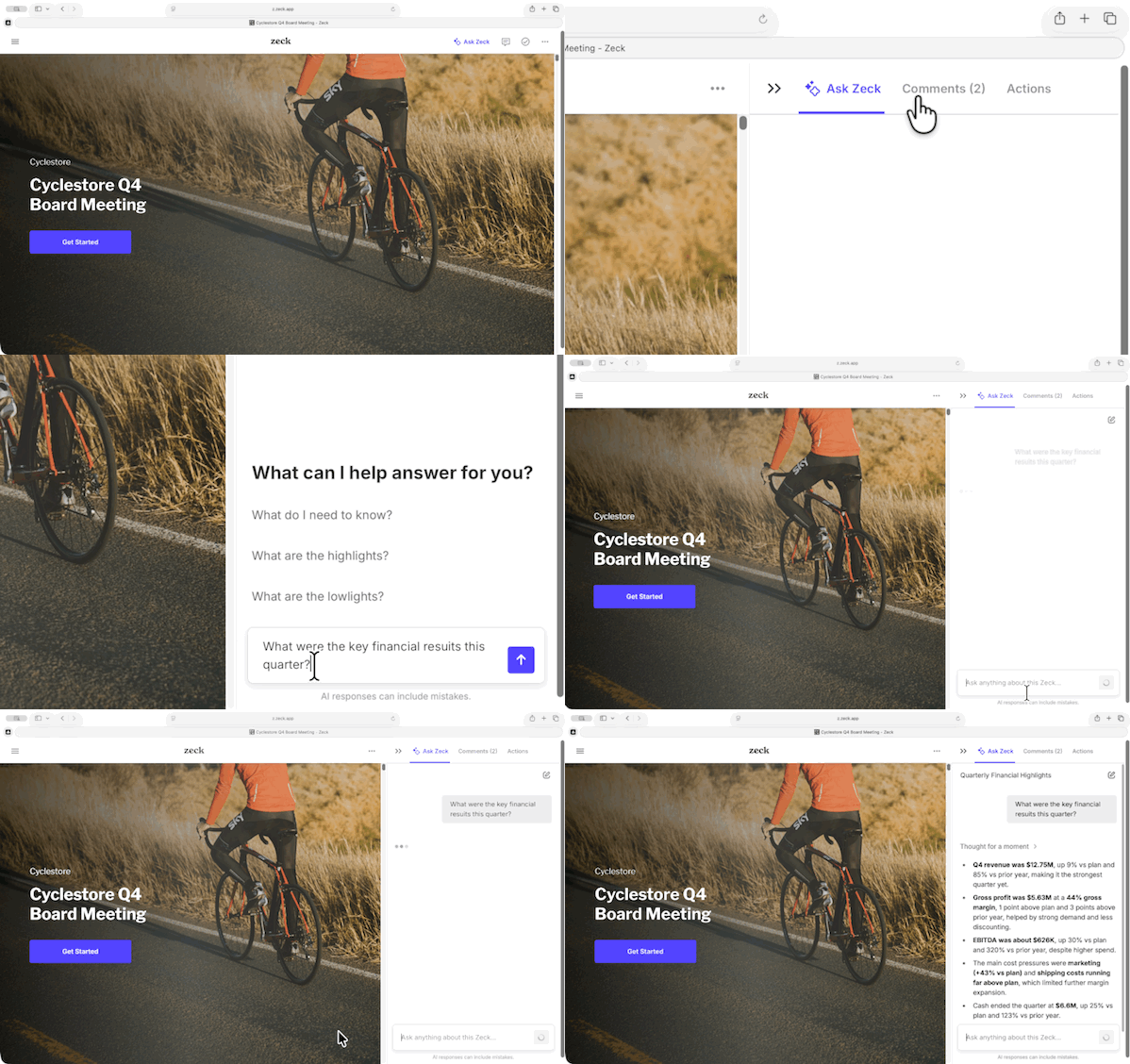
You can ask then follow-up questions to dig deeper into a topic or clarify specific details.
If ✨ Ask Zeck cannot find an answer:
When ✨ Ask Zeck cannot find a strong or complete answer in the Zeck content, it may suggest posting a comment instead.
This allows the author or owner of the Zeck to respond directly and ensures questions are still addressed even when Zeck AI does not have enough context.
2. When to use ✨ Ask Zeck
✨ Ask Zeck is most useful when you want to quickly understand or find something in a Zeck without reading through the full document.
Common examples include:
🔍 Find answers and key details
-
“What were the key financial results this quarter?”
-
“What is the current runway?”
-
“What changed since the last update?”
-
“When is the product launch scheduled?”
-
“What are the hiring plans?”
-
“What feedback was shared on the roadmap?”
🧭 Understand context and decisions
-
“What are the main risks mentioned?”
-
“What are the biggest priorities for this quarter?”
-
“What decisions were made in this update?”
-
“What risks are we surfacing, and what risks are we avoiding?”
-
“What questions will board members likely ask after reading this Zeck?”
📊 Analyze performance and business drivers
-
“Why did net revenue growth slow from last quarter?”
-
“Are margins expected to recover in Q3?”
-
“What leading indicators support the forecast?”
-
“What specific actions are being taken to reduce churn?”
-
“Are there any metrics that need more context?”
💡 Spot gaps and surface clarity issues
-
"What feels unclear, unsupported, or incomplete?”
- "What are some leading questions I can include to prompt discussion in the comments section?"
3. How ✨ Ask Zeck works
✨ Ask Zeck reads the content of the published Zeck you are viewing and generates answers based only on that content.
-
Answers are grounded in the Zeck content
-
Responses include citations so you can see the section where the information came from
-
It is designed to help you move faster while staying aligned with the source material
- It does not train a large language model on your data, so your information stays within your organization.
In some cases, ✨ Ask Zeck may also use context across multiple Zecks to provide broader insights.
4. Who can use ✨ Ask Zeck
✨ Ask Zeck is available to:
- Admins
- Zeck Owners
- Viewers of a published Zeck (such as board members and investors)
5. Can ✨ Ask Zeck be turned off?
Yes. ✨ Ask Zeck can be disabled for a specific published Zeck.
-
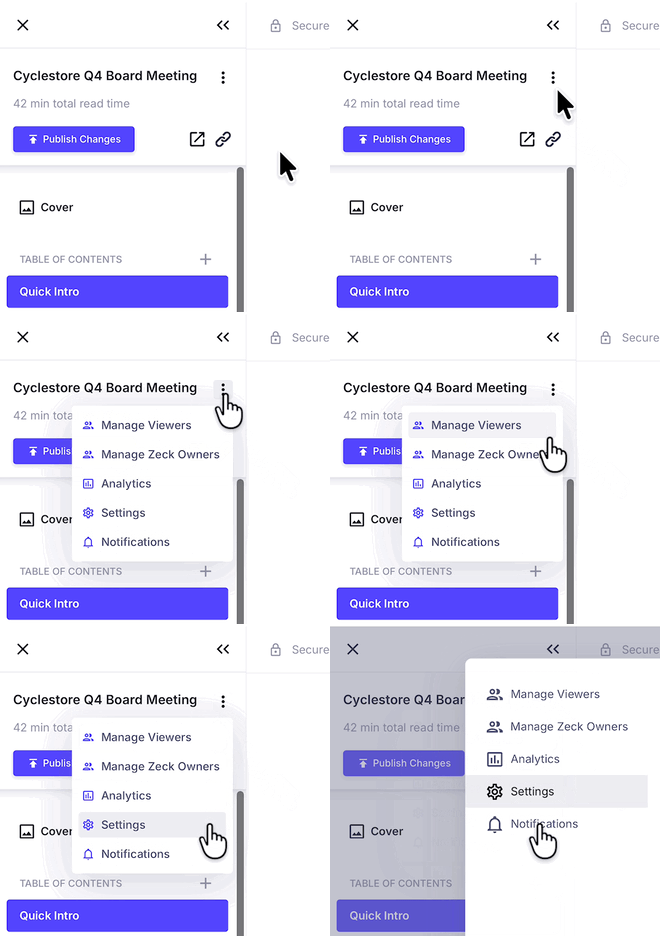
Open the Editor for the relevant Zeck.
-
Click the three-dot menu icon at the top of the Section Navigation panel.
-
Select Settings.
-
Click ✨ Ask Zeck to disable it.
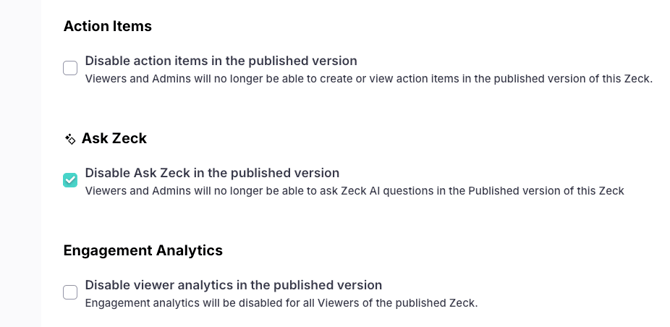
Once turned off, viewers will no longer see or be able to use the feature for that Zeck.
💡 Worth Knowing: This setting, along with all other settings and user permissions, will carry over when the Zeck is duplicated.
💡 Tips for best results
- Asking specific questions rather than very broad ones will always generate the most fruitful results
- Reference topics like “revenue,” “roadmap,” or “risks” for more precise answers
- Use follow-up questions to explore a topic further
- If you are unsure what to ask, a great starting question is “What are the key updates in this Zeck?”
👋 Need more help? Reach the Zeck Customer Success Team directly at success@zeck.app.