![Zeck-blocks-100-3.png]](https://help.zeck.app/hs-fs/hubfs/Zeck-blocks-100-3.png?height=50&name=Zeck-blocks-100-3.png)
Included in this article:
🚀 Tips and tricks if you’re just getting started
Many actions in Zeck that are typically done by clicking can also be completed using keyboard shortcuts, helping make formatting and adding content quicker and easier.
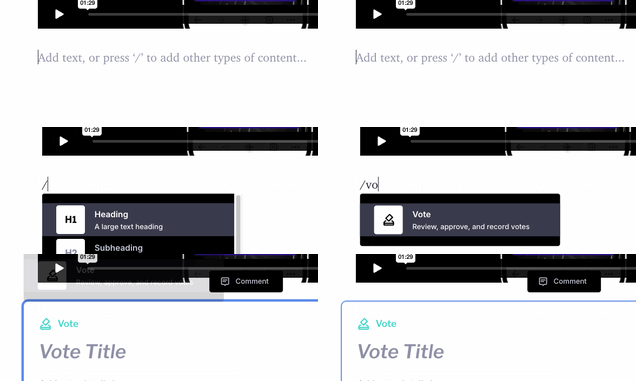
| / | Open element menu (add blocks, content, or elements) |
| / + typing | After opening the menu, you can type to search. For example, typing “vo” will filter to “Vote” so you can quickly hit Enter to select it without scrolling. |
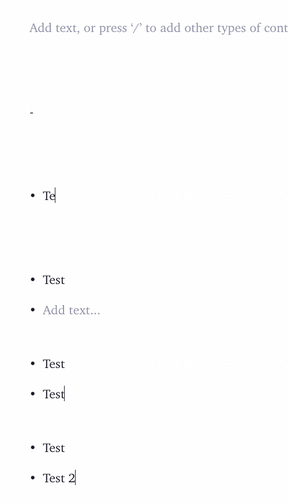
| - + space | Start a bulleted list (for simple ideas or notes) |
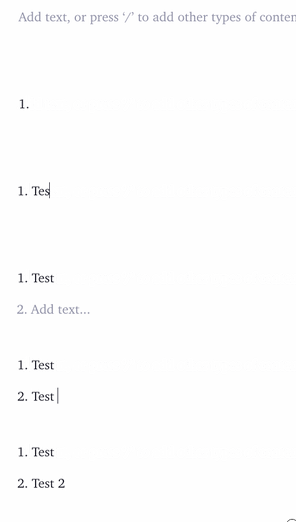
| 1 + . + space | Start a numbered list (for steps or sequences) |
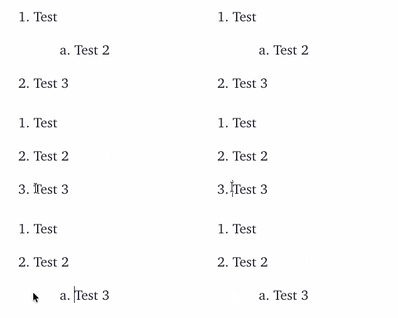
| Tab | Indent content (move a block or list item under another) |
| Shift + Tab | Outdent content (move it back one level) |
↵ Line breaks
These help you control spacing while adding content.
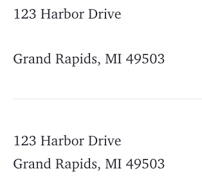
| Enter (Return) | Creates a new block or paragraph (adds full spacing between lines) |
| Shift + Enter |
Creates a line break (moves to a new line without adding |
💡 Use Shift + Enter when you want text to stay closely grouped, such as with addresses.
🔁 Editor hotkeys (Copy, Paste, Undo, and more)
These help you quickly fix, duplicate, or adjust content as you work.
On a Mac?
|
Copy: |
Command (⌘) + C |
| Paste: | Command + V |
| Cut: | Command + X |
| Undo: | Command + Z |
| Select All: | Command + A |
| First press: Selects content in your current line | |
| Press again: Expands selection to the full section |
On a Windows PC?
| Copy: | Control (Ctrl) + C |
| Paste: | Control + V |
| Cut: | Control + X |
| Undo: | Control + Z |
| Select All: | Control + A |
| First press: Selects content in your current line | |
| Press again: Expands selection to the full section |
👋 Need more help? Reach the Zeck Customer Success Team directly at success@zeck.app.