![Zeck-blocks-100-3.png]](https://help.zeck.app/hs-fs/hubfs/Zeck-blocks-100-3.png?height=50&name=Zeck-blocks-100-3.png)
Included in this article:
1. Attaching a File Block
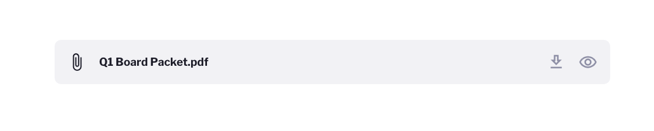
Attach a file when Viewers need a copy to download and keep. You can check it in Preview before you publish.
Good for:
- Financial statements and audit reports
- Spreadsheets Viewers may want to work in, like a budget or financial model
- Signed documents, like minutes, resolutions or contracts
- Policies and committee charters
To attach a file:
- Click Add (+).
- Choose File from the Element Menu.
- Click Choose File.
- Select the file in your file finder.
- Zeck adds it to the Section as a File block.

Glancing at an Attached PDF
Attached PDFs show an eye icon next to Download. Click it to glance at the PDF without downloading it. Other file types, like Word or Excel files, only show Download.
✅ Worth Knowing: The download and eye icons show in the Editor and in Preview, but they only work on the Published Site. To test a file, open the published Zeck.
Replacing or Deleting a File
- Click the file in the Editor.
- Click Trash to delete it, or Replace to swap it for a new one.
- If you’re replacing it, select the new file in your file finder.
- Click Open.
⚠️ Heads Up: Turning off "Export to PDF" doesn’t stop downloads. Viewers can still download attached files, so only attach what you’re comfortable with them keeping.
2. Embedding a PDF
Already have it as a PDF? Bring it right in. Embedding lets Viewers read it in the Zeck, so you don’t have to rebuild anything. Building in the Zeck Editor gives you the most polished result, but embedding is a great fit when a document already exists or time is short.
Good for:
- Slide decks, like a management presentation from PowerPoint or Google Slides (saved as a PDF first)
- Long, detailed documents, like an audit report, a legal agreement or a board policy
- Reports from outside your team, like a valuation, a consultant’s report or an investor update
- Updates someone already put together, like a department’s quarterly report
- Last-minute materials, when there’s no time to build them in the Editor
To embed a PDF:
- If your file isn’t a PDF yet, save it as one first. In PowerPoint, Google Slides or Word, use File, then Save As or Download, and choose PDF.
- Click Add (+).
- Choose Embed PDF.
- Select the PDF in your file finder.
💡 Pro Tip: Use both. Embed a PDF summary so Viewers can read it in the Zeck, then attach the full spreadsheet in the same Section for anyone who wants to dig into the numbers.
Choosing a View
Select the drop-down above the PDF in the Editor to choose how Viewers see it.

- Carousel View: Viewers flip through pages with the arrow buttons. This works well for slide decks.

- Full Screen View: Viewers open the PDF full screen and scroll through it. This works well for long documents.

Downloading an Embedded PDF
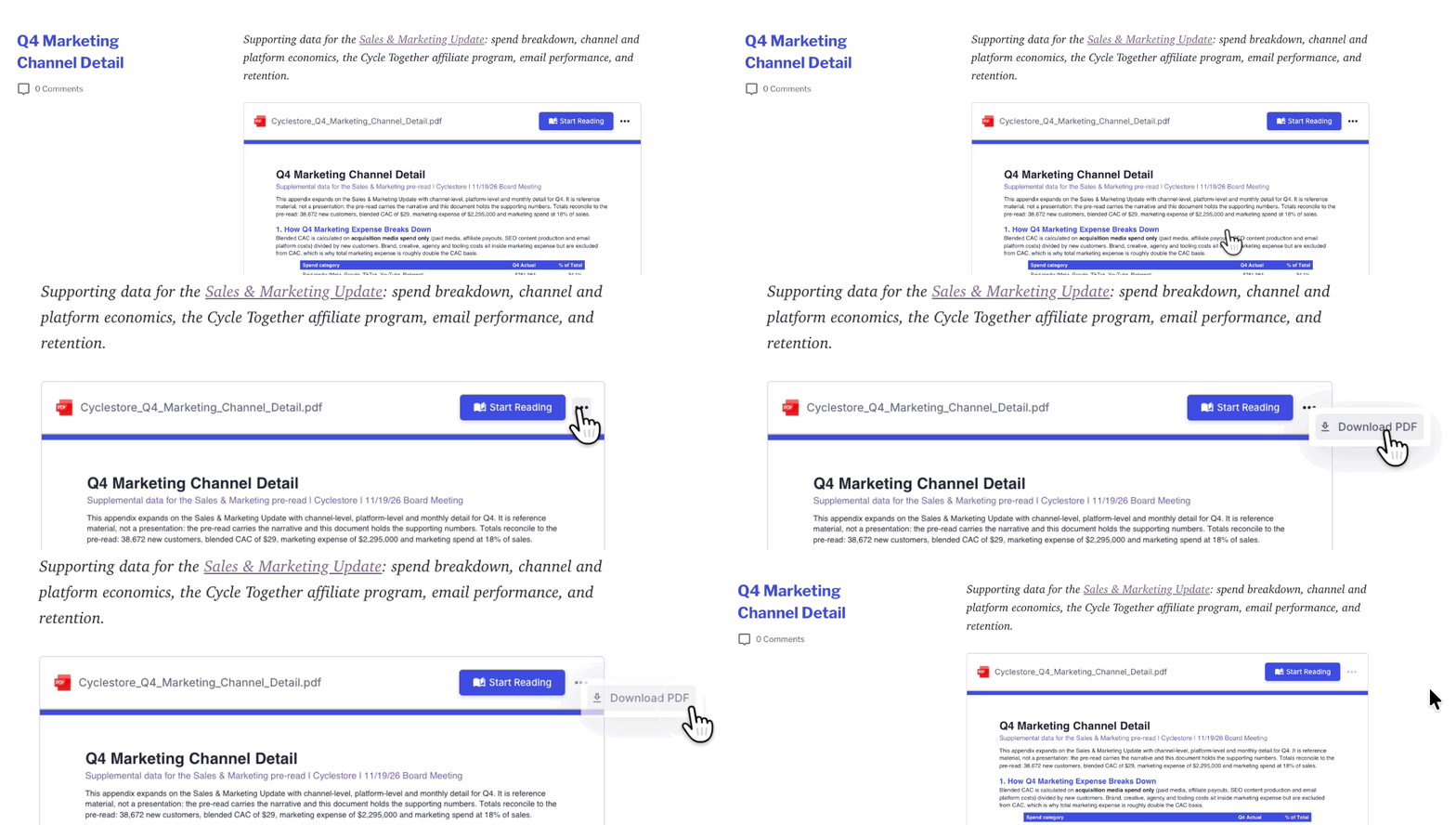
On PDFs set to Full Screen View, Viewers can save the original file. Carousel View doesn’t show this option.
To download an embedded PDF:
- Find the PDF on the Published Site.
- Click the three dots (PDF options) next to Start Reading.
- Choose Download PDF. The original file saves to your computer.
To hide the download option for one PDF:
- In the Editor, select the PDF.
- In its formatting toolbar, choose Disable PDF Download.
- Republish the Zeck.
To turn downloads back on, choose Enable PDF Download and republish.
✅ Worth Knowing: Downloads are on by default. Hiding the download only removes the menu for that PDF. It doesn’t change who can view the PDF or turn off Export to PDF for the whole Zeck.