![Zeck-blocks-100-3.png]](https://help.zeck.app/hs-fs/hubfs/Zeck-blocks-100-3.png?height=50&name=Zeck-blocks-100-3.png)
Included in this article:
1. Action Items
☑️ Adding and Assigning an Action Item:
-
Click the check mark icon in the top right corner of the Published Zeck view to open the Action Item panel on the right-hand side.
-
Select Add an Action Item in the upper right corner of that panel.
-
Once created, the action item will appear both in this panel and in the Admin’s Inbox on their home Zeck page.

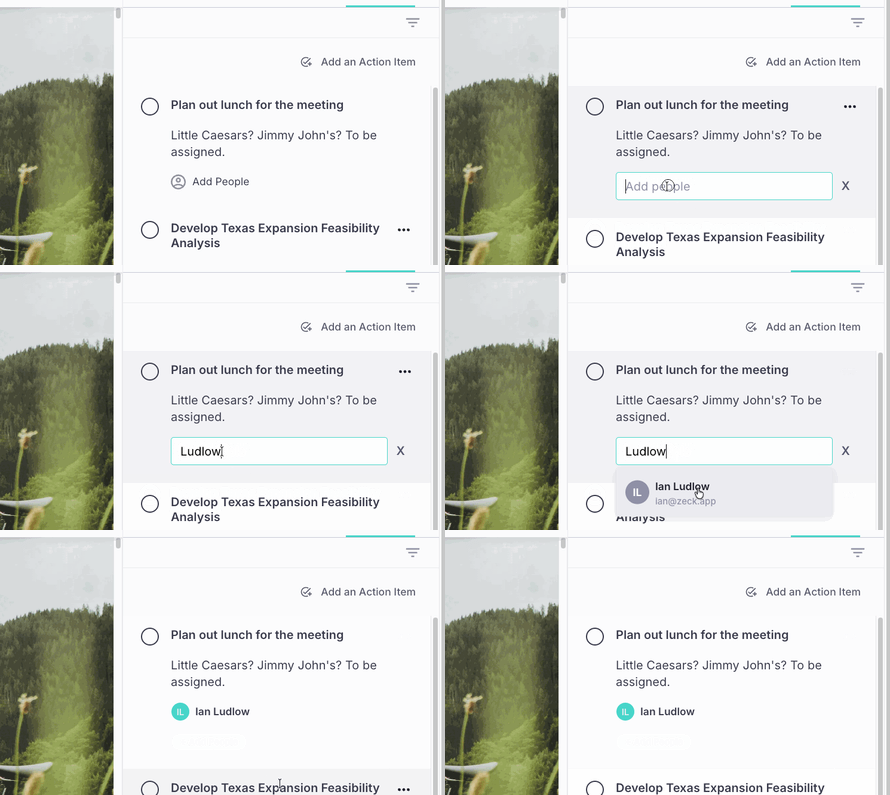
- Assign a user to an action item by clicking on the Add People button and type out their name.
✍️ Editing or Deleting an Action Item on the Published Site:
- Open the Action Item Panel by clicking the Checkmark (add screenshot) button
- Find the action item you would like to Delete in the Action Item Window and click the Three Dots
- A drop down menu will open, click Delete
- If you want to edit an action item, simply click your cursor within the text editor of the action item and start typing.
📨 Viewing Action Items from Inbox:
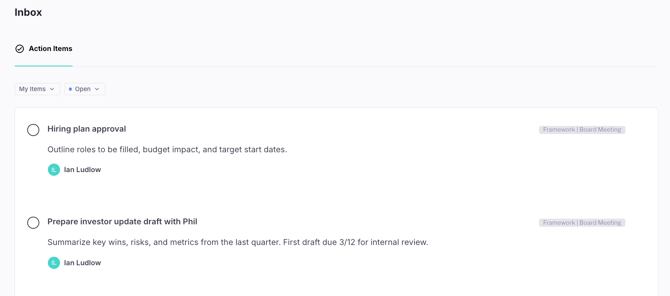
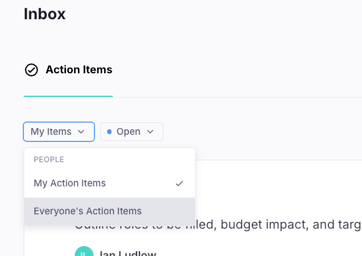
All users can view and manage action items directly from their Inbox. This section of Zeck will display any action items assigned to you.
-
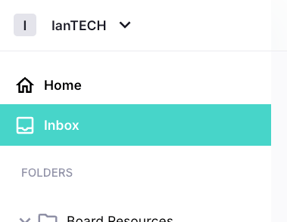
The Inbox is located in the upper left-hand corner of your home page, just below the Home panel.
-
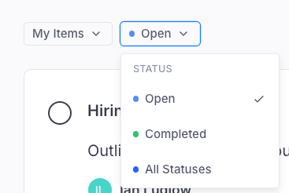
Within the Inbox, you can filter by Item Status to view Open, Completed, or All Statuses.
-
To the right of each action item title, you’ll see a clickable link to the referenced Zeck, allowing you to quickly navigate to the relevant content.
💡 Admins have the ability to view Action Items assigned across the platform for all users.
✅ Resolving an Action Item:
-
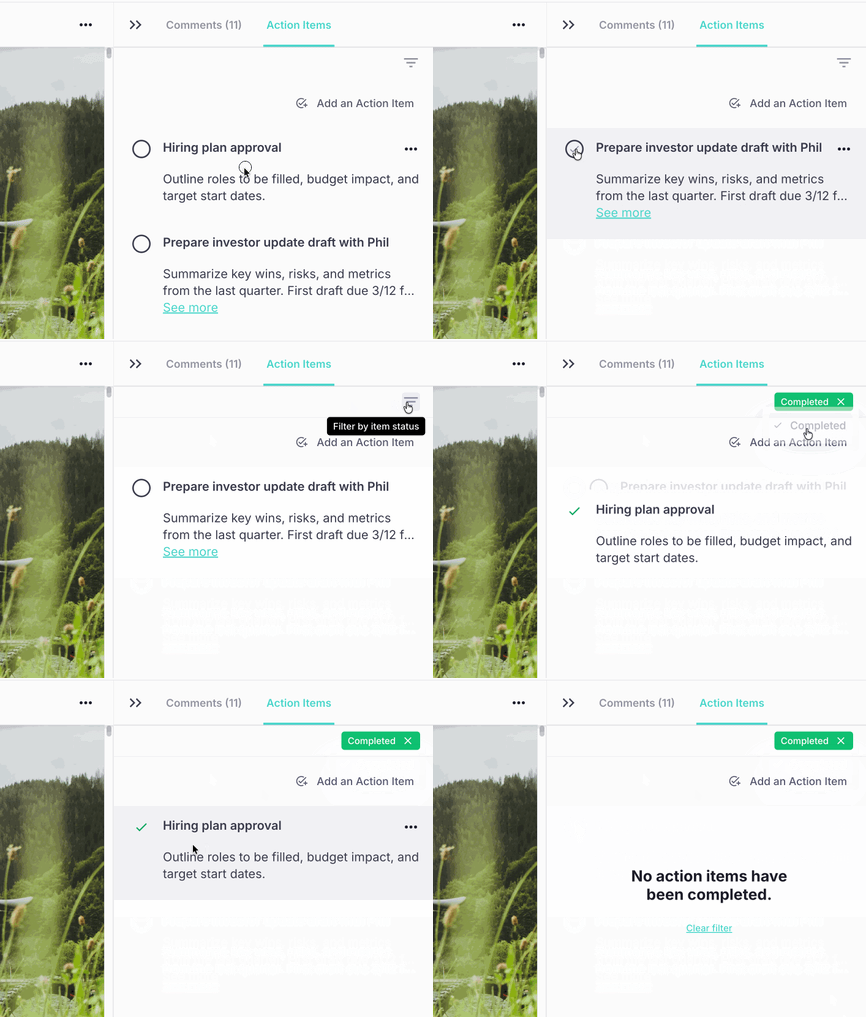
Hover over the open circle to the left of the action item title and click it.
- You can review all Resolved Action Items by clicking the Filter and choosing Completed.
-
To reopen a resolved action item, simply uncheck the circle to the left of the title.
2. Disabling Action Items
You can deactivate Action Items for individual Zecks. This will disable all Action Item-related activity for approved viewers reviewing a published Zeck.
🚫 Disabling Action Items in a Zeck:
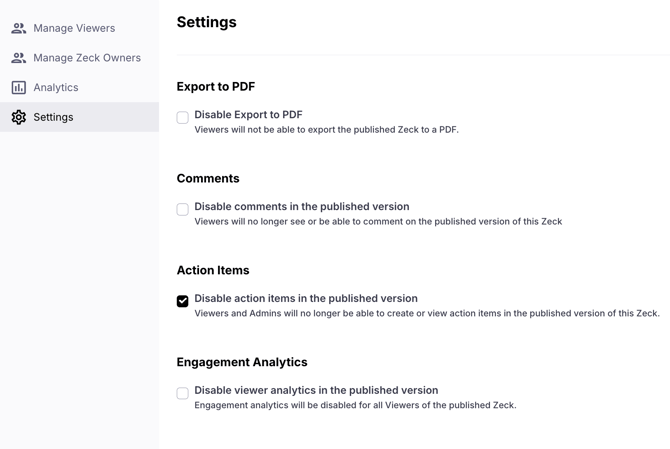
- Click the Three Dots in the top left of the Editor view.
- Choose Settings.
- From here you can look for the Action Items option and check the associated box to deactivate tracking.
👋 Need more help? Reach the Zeck Customer Success Team directly at success@zeck.app.